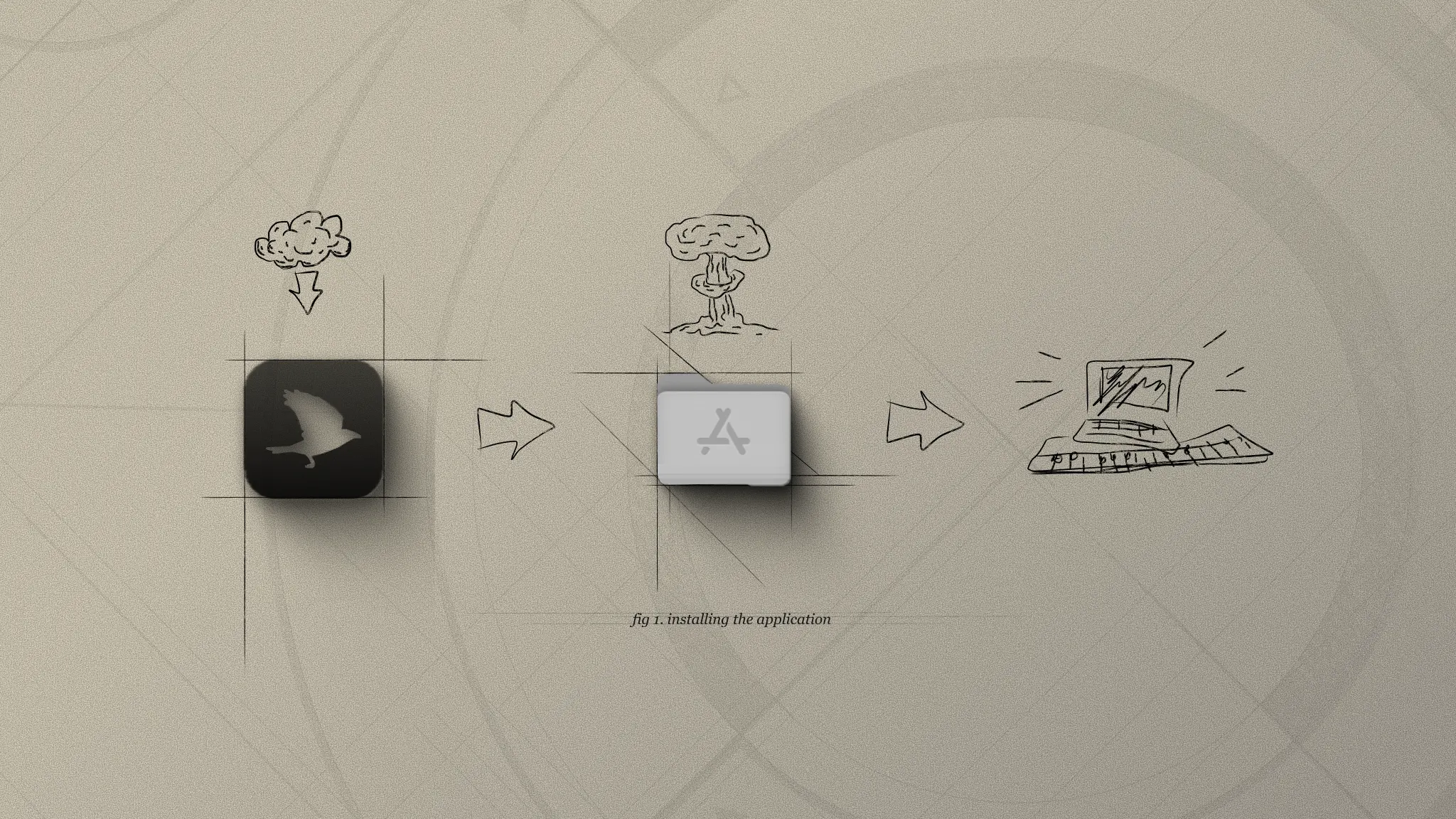

Download the app from one of the links below
Once downloaded install into your applications folder.
When you open the app sign in using your Crow Hill account name and password (these must be the same as the ones you use on the website – the app and the website are designed to talk to one another).
There will be a pause whilst the app synchronises with your account.
Everything you have checked-out both bought or free from the Crow Hill website will be on this list.
This list will also show any of your products that have updates available or indeed upgrades simply click to download.
In the app settings you also have a place where you can organise where your files are stored and what formats to use or indeed for each product there is a set of options access information and specifics about individual products but also this is where you can uninstall reinstall or indeed access the user manuals.
For Mac users the default setting for the application we call “silent plugin installation”. For security purposes you will be prompted to authorise us to use this function the first time you install something from you. Please don’t be alarmed there is nothing nefarious going on here. We simply don’t want you to have to enter your password every time you download or update anything from us and this is all the function is used for. If you’d rather enter your password for every app action with us simply disable “silent plugin installation” in the “app settings”.
Click HERE for our privacy policy.
For any more questions you may have click HERE to go to our FAQ page.
Download the Crow Hill App for your operating system:
—> macOS (Intel)– Intel-Based Chip macOS – Big Sur or later
—> macOS (Arm) – M-Series Apple Silicon – Big Sur or later
—> Windows – Windows 10 and 11